 Kinnetly
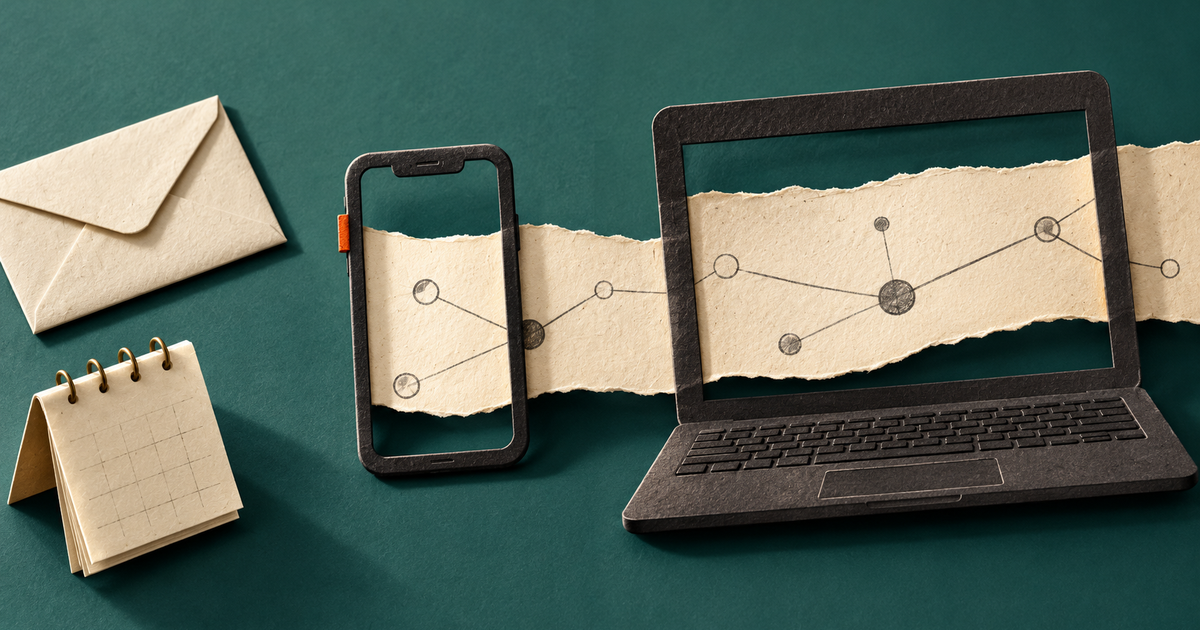
You record a useful detail on your phone after a conversation. The next morning, you open your laptop before a meeting. The useful question is simple: will the same relationship record be there?
That is the practical meaning of personal CRM sync across devices. Your records belong to one account, so the context you save on one signed-in device is available when you use that account on another.
The word “sync” gets used for several different behaviours. Before choosing a personal CRM, separate them.
Three things people mean by sync
The same account on several devices
This is device continuity. You sign in to the same account on your phone and laptop, then work with the same relationship records.
A useful example is a note you add after meeting someone. You save the detail on your phone, then find it in that person's record when preparing on your laptop. The phone and laptop are two ways into the same account, not two separate copies that you need to manage.
Connections to external accounts
Some products connect to an email inbox, calendar, social account or messaging service. They may use those connections to import contacts or build an activity history.
That is a different kind of sync. It involves ongoing access to another service and whatever permissions the connection requests. A product can work across your devices without connecting to any of those accounts.
Two-way phone contact sync
This usually means changes can move between the CRM and the Contacts app on your phone. Edit a phone number in one place, for example, and the other record changes too.
Importing or exporting a CSV or vCard file is not continuous two-way sync. It is a deliberate transfer at a particular moment. If phone contact sync matters to you, ask for a precise answer rather than assuming an import button provides it.
What cross-device use looks like in Kinnetly
Kinnetly is a browser-based personal CRM. You can open the same Kinnetly account on desktop, iPhone or Android, and changes to the account are available across signed-in devices. On a phone, you can also add the web app to your home screen.
That home-screen option is a progressive web app, often shortened to PWA. It gives you an app-like way to open Kinnetly. It does not turn Kinnetly into a native iOS or Android app, and it does not grant automatic access to your other apps.
Kinnetly is also single-user. The same account across your own devices is not a shared team workspace. If several colleagues need to edit one customer record, assign ownership or manage a common sales process, that is a job for a team CRM.
Run a phone-to-laptop continuity test
You can test the behaviour without importing your address book or adding sensitive information.
- Sign in to the same Kinnetly account on your phone and laptop.
- On one device, create a temporary contact or choose a record where a harmless test note is appropriate.
- Add a short, non-sensitive detail, such as “Device sync test, Tuesday”.
- Open the corresponding record on the other device and check that the saved detail appears.
- Edit or remove the test detail, then confirm the change from the first device.
This checks the thing you actually care about: a deliberately saved record is available when you move between devices. It does not test offline editing, automatic conflict resolution or background notifications, so do not treat it as evidence for those behaviours.
If you add Kinnetly to your phone's home screen, repeat the test from that shortcut. Google notes that PWA installation varies by browser and platform, so the exact installation steps may differ even though you are still opening the same web app.
Five questions to ask before you rely on “sync”
A product page may say “sync” without explaining what moves, where it goes or what permission it needs. These five questions make the claim easier to assess.
1. What moves between my devices?
Ask whether notes, relationship links, activities and reminders belong to one account. Check the fields you use in real work rather than testing only a name and email address.
In Kinnetly, the relationship map is account-scoped. That includes the people and context you deliberately save. Each device can keep its own current screen position or focus, so device continuity does not mean every open screen must look identical at the same moment.
2. Does it write to my phone contacts?
Ask whether editing a CRM record changes the native contact card, whether the reverse is true, and which fields are included. The answer may be different for names, phone numbers, notes and relationship history.
Kinnetly documents CSV and vCard import and export, plus deliberate vCard sharing. Do not interpret those features as ongoing address-book sync.
3. What happens without a connection?
A home-screen icon does not guarantee offline editing. Ask which actions work without internet access, how queued changes are handled and what happens when two devices edit the same record.
Kinnetly's documented promise is live cross-device use while signed in and connected. Do not plan around offline record editing unless the product documents it.
4. Can I take my data with me?
Device sync and data portability solve different problems. Sync helps you continue on another device. Export helps you keep or move a copy of your records.
Kinnetly supports CSV and vCard contact export, as well as a JSON backup and restore for the whole network. The personal CRM export guide explains why a contact file and a full relationship-map backup are not the same thing.
Continuity you can rely on
A personal CRM can follow you from phone to laptop through the same account. The useful context appears because you chose to save it, then remains available wherever you prepare for the next conversation.
For many relationship-driven professionals, that is enough. Record the detail while it is fresh, then retrieve it wherever you prepare for the next conversation.
Open your Kinnetly relationship map on your phone and laptop. Save one useful detail deliberately, then find it wherever you work.