 Kinnetly
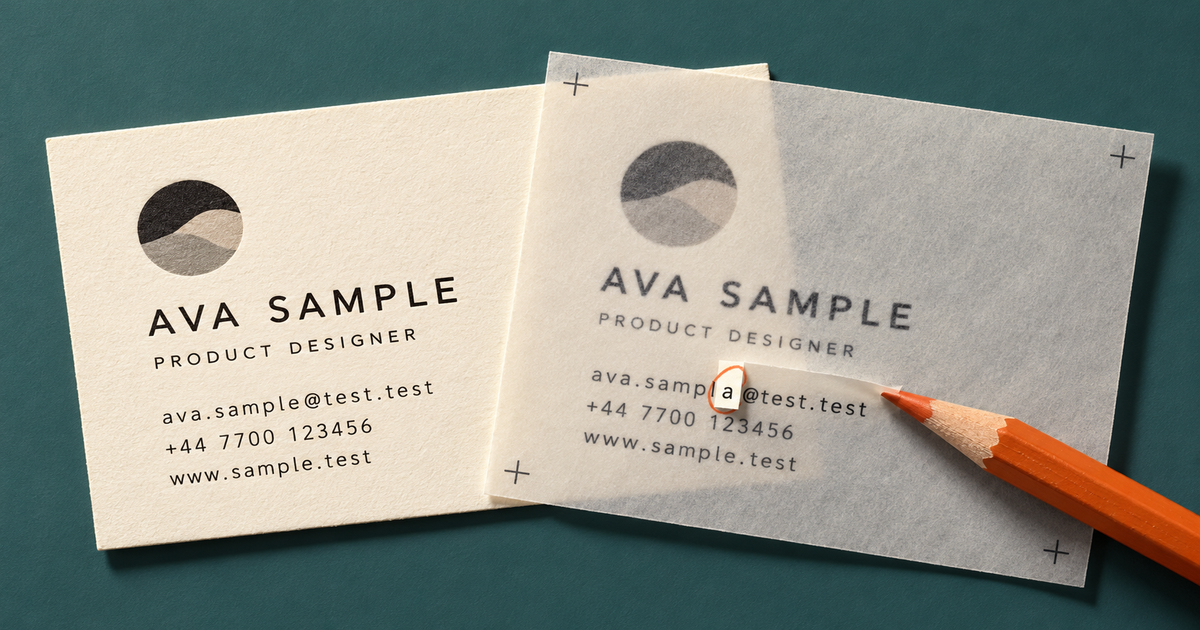
If you scan a business card into a personal CRM, treat the result as a first draft. The scanner can save you from retyping a name, phone number and email address. It cannot confirm that every character is right or that the card is still current.
Kinnetly keeps the review step in your hands. It suggests contact details from the card, then leaves the new-contact form editable. You decide what to correct and whether to create the person.
Start with one card
In Kinnetly, choose Add, then Scan a business card. On a phone, you can capture the card with the camera. On a computer, choose a photo of it.
Use a clear image of one card. Keep the whole card in frame, avoid glare across small text and check that the image is the right way up. If the card is old, remember that a clean scan can still reproduce an old role, company or phone number perfectly.
Kinnetly can suggest these fields:
- name
- job title
- company
- phone
- website
Nothing is created yet. The useful part comes next.
Check the person before the details
Start with the name, role and company. These fields give the rest of the record its meaning, and they are easy to misread when a card uses an unusual layout.
Check that a job title has not landed in the name field. Make sure a company name has not been mistaken for the person's surname. If the card shows a brand and a legal company name, choose the one that will help you recognise the relationship later.
A business card is evidence of what was printed when the card was made. It does not verify where the person works today. If you already know that something has changed, edit the suggested detail rather than preserving an old card as current fact.
Read every email character and phone digit
A plausible email address can still be wrong. Compare it character by character with the paper card, paying particular attention to full stops, hyphens, underscores and similar-looking letters or numbers.
Do the same with the phone number. Check the country code, area code and every digit. If the card shows several numbers, make sure the useful one is in the phone field rather than assuming the first printed number is a mobile.
Then check the website. A missing letter can take you to the wrong organisation, while an extra line of small print can be mistaken for part of the address.
Microsoft's general guidance for document extraction describes extracted fields as predictions and recommends human review where errors matter. That principle applies here, but it does not mean Kinnetly uses Microsoft's extraction service. The practical point is simpler: a tidy-looking result still needs your eyes.
Look in the note for a postal address
Kinnetly does not place a detected postal address into a separate address field during this flow. It adds the address to the note.
Open the note before you create the person. Keep the address if it will help and you have a reason to store it. Correct it if the scan is wrong. Remove it if it is irrelevant.
This small check prevents a printed office address from becoming unexplained note text. It also gives you a chance to distinguish what came from the card from anything you add later about the relationship.
Treat a duplicate warning as a decision
After you review the fields, Kinnetly may warn that a person with the same email, phone number or name already exists.
A warning is a prompt to inspect, not proof that two records are the same person. Choose Open existing when the suggested match is the person already on your map. Choose Create anyway only when you have checked and the match is genuinely someone else.
This matters because duplicate contacts split notes, reminders and relationship links across separate records. If you want to clean up records that already exist, the guide to duplicate contacts in a personal CRM covers that wider job. Here, the aim is to avoid a split before it starts.
Know what the scan cannot tell you
A business card can supply printed contact details. It cannot tell you who introduced you, what you discussed or whether you promised to send something.
After you create the contact, add relationship context only if it is useful and true. A short note such as “Met at the Brisbane design breakfast; spoke about accessible booking forms” may be enough. If someone introduced you, you can record that real connection on your relationship map.
Do not let the convenience of scanning turn the card into evidence it does not contain. Receiving a card does not grant permission for an unsolicited sales sequence, and the scan does not create an introduction or follow-up on its own.
What happens to the card image
The scan is a user-started AI action. Kinnetly says the card photo is used to read the details and is not stored by Kinnetly. Its privacy information also explains that content selected for an AI feature is sent to an AI provider for processing.
That distinction is worth keeping clear. “Not stored by Kinnetly” does not mean that no external provider processes the image. Use a card you are comfortable submitting for that purpose, then review the suggested details before saving.
Save only after the record makes sense
Before you press Create, run one last check:
- The name belongs to the person.
- The role and company match the card, or you have corrected known old details.
- Every email character and phone digit is right.
- The website matches the printed address.
- Any postal address in the note is useful and accurate.
- A duplicate warning has been resolved deliberately.
That takes a little longer than accepting the first result. It is still faster than finding a wrong address when you need to contact someone, or merging two records after their context has split.
Bring one paper card into your private relationship map. Review the suggested details before you save.